
YARA malware & pattern detection#
Overview#
The YARA Malware & Pattern Detection checker scans restored backup data for malware signatures, suspicious content, and custom patterns using YARA rules.
It integrates YARA scanning into Bacularis Restore Verification, allowing administrators to automatically examine restored files and directories as part of backup recovery tests.
The checker supports both Classic YARA and YARA-X scanning engines. Scan results are evaluated against configurable warning and error thresholds to determine the verification outcome.
Checker name#
YARA Malware & Pattern Detection
Plugin identifier: YaraPatternCheck
Description#
The YARA Malware & Pattern Detection checker uses an external YARA scanning engine to examine restored backup data against user-provided YARA rules.
The checker scans the selected file or directory, identifies matching rules, and evaluates the number of matches against the configured warning and error thresholds. Depending on the results and configuration, the verification can pass, report a warning, or fail.
Scanning is performed on the restored data at the restore destination. The checker does not modify the scanned files and does not remove or quarantine detected content.
Administrators can use the checker to detect known malware signatures, suspicious file content, or custom patterns relevant to their environment.
Supported objects#
The checker supports the following restored filesystem objects:
File - scans a single restored file against the configured YARA rules.
Directory - recursively scans files within the selected restored directory, including its subdirectories.
The checker uses the selected YARA engine to perform scanning. The handling of symbolic links and special filesystem objects depends on the scanning engine and its behavior.
Attribute#
Not applicable.
The checker does not use a filesystem attribute for verification. Instead, it scans the selected restored file or directory using the configured YARA rules and evaluates the detected matches.
Supported operators#
Not applicable.
The checker does not use standard verification operators. Scan results are evaluated internally using the configured warning and error thresholds.
Expected value#
Not applicable.
The checker does not use an expected value for comparison. Instead, it evaluates the number of YARA rule matches against the configured warning and error thresholds to determine the verification result.
Capabilities#
The checker provides the following Restore Verification capability:
File check (FILE_CHECK) - examines restored files and directories at the restore destination using an external YARA scanning engine.
The checker requires access to the restored filesystem data. It cannot scan backup data directly from Bacula volumes without restoring it first.
Requirements#
The checker requires the following components:
YARA scanning engine - either Classic YARA or YARA-X must be installed on the system where Restore Verification checks are executed.
YARA rules - at least one valid YARA rule file or a directory containing YARA rules must be available. The rules must be compatible with the selected scanning engine.
Filesystem access - the scanning process must have permission to access the YARA executable, rule files, and restored backup data.
The checker uses an external command-line scanning engine. It does not require a PHP YARA extension or a separately running YARA service.
The scanning engine and rules must be available on the system that executes the Restore Verification checks, typically the Bacula File Daemon host where the backup data is restored.
Note
Bacularis does not provide a YARA scanning engine or malware detection rules. These components must be installed and maintained separately.
Only one scanning engine is required. Classic YARA and YARA-X do not need to be installed together.
Installation#
Install one of the supported YARA scanning engines on the system where Restore Verification checks are executed.
The checker supports:
Classic YARA - the original YARA scanning engine.
YARA-X - a newer YARA scanning engine implemented in Rust.
Both engines are supported by the checker. Choose the engine that meets your requirements and is compatible with your YARA rules.
Installing Classic YARA#
Classic YARA is available in the package repositories of many Linux distributions.
Debian / Ubuntu
Install YARA using APT:
sudo apt update
sudo apt install yara
Fedora / RPM-based systems
On Fedora, install YARA using DNF:
sudo dnf install yara
Package availability may vary between RPM-based distributions.
After installation, verify that the YARA command-line tool is available:
yara --version
The executable is typically installed at /usr/bin/yara.
Installing YARA-X#
YARA-X provides pre-built binaries for Linux and other supported operating systems.
Download the appropriate Linux binary archive for your system architecture from the official project repository:
For example, on a Linux x86_64 system, download the corresponding Linux archive and extract it:
tar -xzf yara-x-*.gz
Install the extracted yr executable in /usr/local/bin:
sudo install -m 0755 yr /usr/local/bin/yr
Verify the installation:
yr --version
The yr command is the YARA-X command-line scanning tool.
Note
The archive filename and installation procedure may vary between YARA-X releases and system architectures. Refer to the official release instructions when selecting the appropriate binary.
Configuring the executable location#
After installing the selected engine, specify its executable directory in the checker’s YARA bin path parameter.
Typical locations are:
/usr/bin- Classic YARA installed from distribution packages./usr/local/bin- YARA-X installed from a pre-built binary.
The parameter specifies the directory containing the executable, not the full path to the executable.
If YARA bin path is empty, the checker searches for the selected
executable using the system’s PATH environment variable.
Obtaining and installing YARA rules#
YARA uses rules to identify malware signatures, suspicious file content, and other patterns. Each rule defines conditions that are evaluated against scanned files.
The YARA Malware & Pattern Detection checker does not include built-in malware detection rules. Administrators must provide their own rules or obtain them from external sources.
Rules can be written manually or downloaded from publicly available rule repositories.
Rule sources#
The following projects provide publicly available YARA rules:
Neo23x0 Signature-Base - a collection of YARA signatures and indicators of compromise used by security scanning tools.
Yara-Rules - a community-maintained collection of YARA rules.
These are external projects maintained independently of Bacularis. Rule availability, compatibility, licensing, and maintenance policies may vary.
Installing a rule set#
The following example uses the Neo23x0 Signature-Base repository.
First, install Git if it is not already available, then clone the repository:
mkdir -p ~/yara-rules
git clone https://github.com/Neo23x0/signature-base.git \
    ~/yara-rules/signature-base
The YARA rule files are located in:
~/yara-rules/signature-base/yara/
Some rules in this repository require external variables provided by other scanning tools. Such rules cannot be used directly with a standard YARA or YARA-X command-line scan without supplying the required variables.
The repository provides a list of these rules in yara/external-variable-rules.txt.
To prepare a separate rule directory, excluding files listed as requiring external variables, run:
mkdir -p ~/yara-rules/active

for rule in ~/yara-rules/signature-base/yara/*.yar ~/yara-rules/signature-base/yara/*.yara; do
    [ -f "$rule" ] || continue
    name=${rule##*/}
    if grep -Fxq -- "$name" ~/yara-rules/signature-base/yara/external-variable-rules.txt; then
        continue
    fi
    cp -- "$rule" ~/yara-rules/active/
done
This creates a separate directory containing the selected rules without modifying the original repository.
Note
Excluding rules that require external variables does not guarantee compatibility with every YARA or YARA-X version. Other rules may still produce compilation errors or warnings.
Check that the selected rule set works with your scanning engine before using it in Restore Verification.
Using rules in Bacularis#
After preparing the rule directory, configure the YARA Malware & Pattern Detection checker:
Select Classic YARA or YARA-X as the scanning engine.
Set YARA rules path to the prepared rule directory.
Leave Use compiled YARA rules disabled when using regular YARA source files.
For example, if the rules were prepared using the commands above, specify the absolute path:
/home/username/yara-rules/active
Replace username with the appropriate system user name.
The rule directory must be accessible to the process performing Restore Verification.
The checker loads the supported rule files from the specified directory and uses them to scan the restored backup data.
Updating rules#
YARA rules should be reviewed and updated regularly to maintain their effectiveness against evolving threats.
When using an external rule repository, obtain updates from the original project and review changes before deploying them.
After updating the source repository, regenerate the active rule directory and verify that the rules remain compatible with the selected scanning engine.
Warning
YARA rules are executable detection logic interpreted by the scanning engine. Obtain them from trusted sources and review them before use.
External rule sets may have different licensing terms. Verify the applicable license before using, modifying, or redistributing rules.
How YARA scanning works#
The YARA Malware & Pattern Detection checker operates on backup data restored by Bacula as part of a Restore Verification test.
After the restore operation completes, Bacularis invokes the selected YARA scanning engine to examine the restored file or directory using the configured YARA rules.
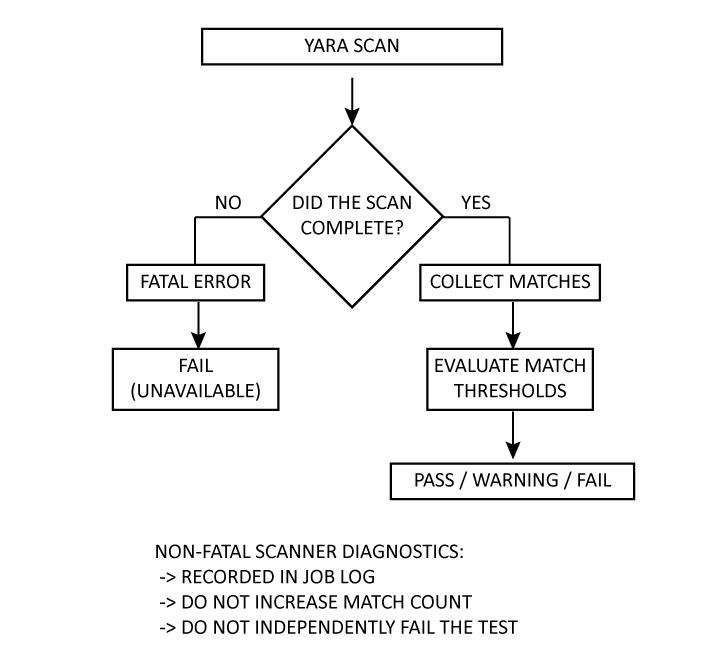
The scanning process consists of the following steps:
Restore backup data - Bacula restores the selected backup data to the configured restore destination.
Load YARA rules - the selected scanning engine loads and compiles the provided YARA rules, or loads precompiled rules when configured.
Scan restored data - the scanning engine examines the selected restored file or recursively scans the selected directory.
Collect scan results - Bacularis processes detected rule matches and scanner diagnostics.
Evaluate matches - the checker compares the number of detected matches against the configured warning and error thresholds.
Report verification result - Bacularis reports the result as PASS, WARNING, or FAIL according to the checker configuration.
The following diagram illustrates the scanning workflow:
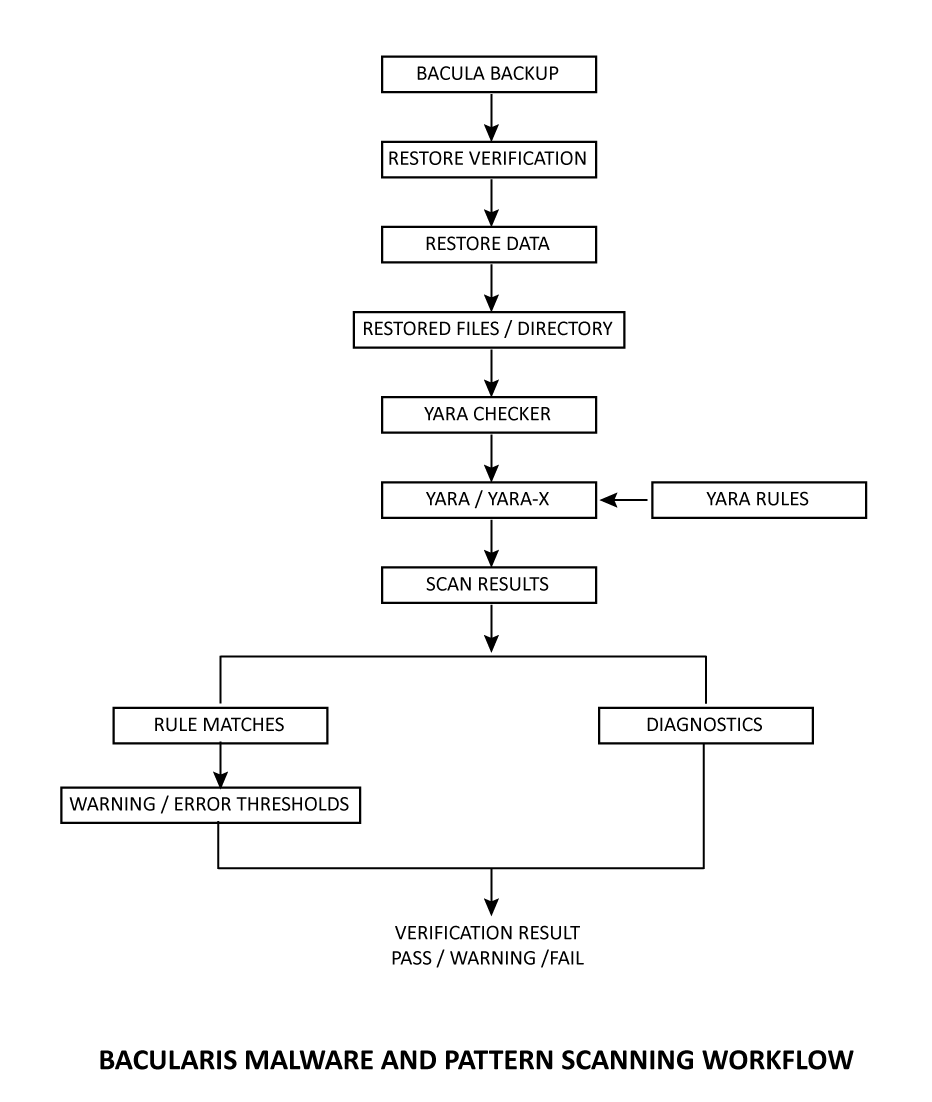
The checker runs the selected scanning engine as an external process. It does not implement its own YARA rule interpreter or malware scanning engine.
Each match identifies a YARA rule that matched a scanned file. The checker collects these matches and evaluates their total number.
Scanner diagnostics, such as rule compilation warnings or file-access errors, are handled separately from detected matches.
If the scanner cannot complete successfully, the checker reports a verification failure rather than treating the scan as having zero matches.
Note
The checker performs detection only. It does not modify, delete, or quarantine restored files.
A successful scan with no matching rules does not guarantee that the scanned data is free from malware. Detection depends on the configured rules and their ability to identify the relevant threats.
Supported YARA engines#
The YARA Malware & Pattern Detection checker supports two scanning engines: Classic YARA and YARA-X.
Both engines use YARA rules to detect patterns in restored backup data. Administrators can select the engine according to their environment, rule compatibility, and preferences.
Classic YARA#
Classic YARA is the original YARA scanning engine, implemented in C.
The checker uses the yara command-line tool to scan restored files
and directories. It supports standard YARA source rules and rules precompiled
for Classic YARA.
Classic YARA is available through the package repositories of many Linux distributions, making it a convenient choice for environments that prefer distribution-managed software.
YARA-X#
YARA-X is a newer implementation of the YARA scanning engine, written in Rust.
The checker uses the yr command-line tool to scan restored files and
directories. Scan results are processed using the structured output provided
by YARA-X.
YARA-X supports YARA rules, although compatibility differences may exist between the engines. Some rules written for Classic YARA may require modifications before they can be used with YARA-X.
YARA-X also supports an optional configuration file, which can be specified using the checker’s YARA-X configuration path parameter.
Choosing a scanning engine#
Only one scanning engine is used for each checker execution.
The following points may help when selecting an engine:
Classic YARA - suitable for environments using existing Classic YARA rules or distribution-provided YARA packages.
YARA-X - suitable for environments using YARA-X and rule sets compatible with its implementation and supported features.
Both engines provide the same checker-level result evaluation in Bacularis, including match counting and configurable warning and error thresholds.
Note
YARA rule compatibility is not guaranteed across all engines and versions.
Precompiled rules must be created for the selected engine. Compiled rule files produced by Classic YARA and YARA-X are not interchangeable.
If you change the scanning engine, verify that the configured rules are compatible with the newly selected engine.
YARA rules#
The checker uses YARA rules supplied by the administrator to identify malware signatures, suspicious content, and other patterns in restored backup data.
The YARA rules path parameter specifies either a single rule file or a directory containing rule files.
The checker supports regular YARA source rules and precompiled rules.
Source rule files#
YARA source rules are text files containing rule definitions.
The checker accepts a single source rule file regardless of its filename extension.
For example:
/etc/bacularis/yara-rules/malware.yar
A source rule file can contain one or more YARA rule definitions.
When using source rules, leave Use compiled YARA rules disabled.
Rule directories#
The checker can load multiple source rule files from a directory.
When a directory is specified, the checker selects files with the following extensions:
.yar.yara
The extension matching is case-insensitive.
For example:
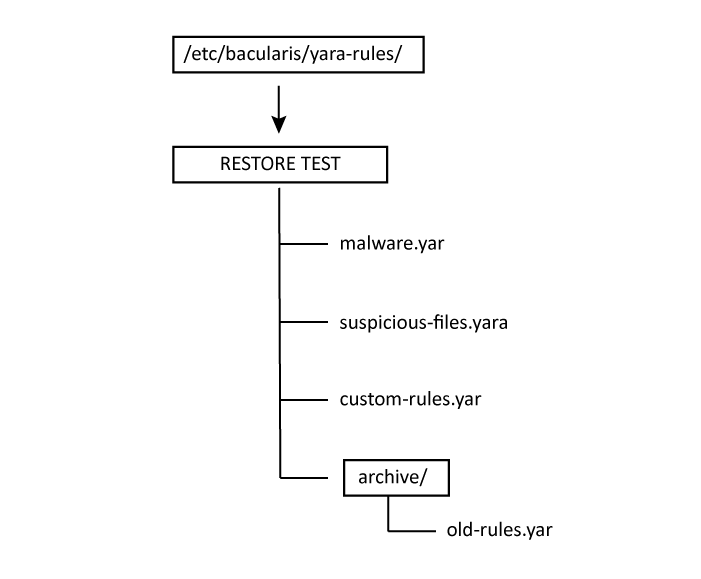
In this example, the checker loads the three source rule files located
directly in /etc/bacularis/yara-rules/.
The old-rules.yar file is not loaded because it is located in a subdirectory.
Important
Rule directory loading is not recursive. Only supported source rule files located directly in the specified directory are selected.
This is different from scanning restored directories, which is performed recursively.
Precompiled rules#
The checker also supports precompiled YARA rules.
Precompiled rules are prepared in advance using tools provided by the selected scanning engine. This avoids recompiling source rules during each scan and may reduce startup overhead, especially when using large rule sets.
To use precompiled rules:
Compile the required rules using the tools provided by Classic YARA or YARA-X.
Specify the path to the resulting compiled rule file in YARA rules path.
Enable Use compiled YARA rules in the checker configuration.
When using precompiled rules, the path must point to a single compiled rule file, not a directory.
Note
Bacularis does not compile YARA rules. Rule compilation and maintenance are performed separately by the administrator.
Compiled rules must be compatible with the selected scanning engine and its version.
Rule compatibility#
Not all YARA rules are compatible with every scanning engine or execution environment.
Some rules may depend on specific YARA modules, engine features, or external variables that are not available in the checker’s scanning environment.
If a rule set cannot be loaded or compiled successfully, the checker reports a verification failure rather than treating the scan as having no matches.
Before using a new or updated rule set in Restore Verification, test it with the selected scanning engine.
For information about obtaining external rule sets, see the section Obtaining and installing YARA rules.
Match counting and results#
The YARA Malware & Pattern Detection checker evaluates scan results based on the number of YARA rule matches found in restored backup data.
A match is counted when a YARA rule matches a scanned file. The total number of matches is then compared against the configured warning and error thresholds to determine the verification result.
Match counting#
Each matching rule and file combination counts as one match.
This means:
If one rule matches one file, the match count is 1.
If two rules match the same file, the match count is 2.
If one rule matches two different files, the match count is 2.
If two rules each match two files, the match count is 4.
Multiple occurrences of the same pattern within a single file do not increase the match count for that rule.
For example, consider two YARA rules scanning three restored files:
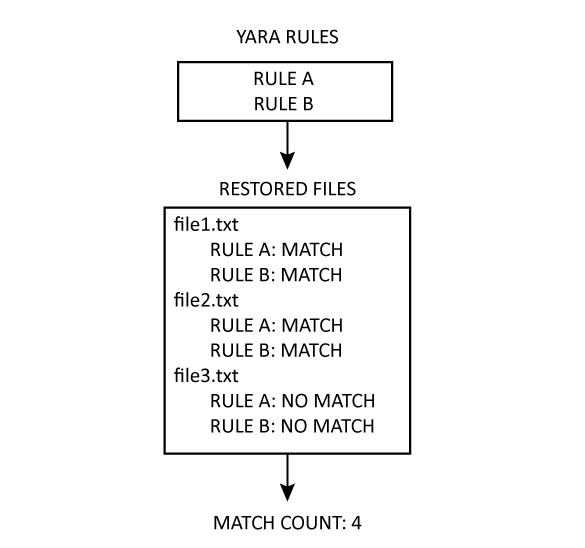
The match count represents the number of matching rule-file combinations, not the number of unique files or individual pattern occurrences.
Warning and error thresholds#
The checker uses two configurable thresholds to evaluate the number of detected matches:
Warning threshold - specifies the minimum number of matches required to report a warning. A value of
0disables this threshold.Error threshold - specifies the minimum number of matches required to report an error. The value must be at least
1.
When the number of matches reaches the configured error threshold, the verification fails.
When the number of matches reaches the warning threshold but remains below the error threshold, the checker reports a warning.
The Treat warning as error option determines whether a warning causes the verification test to fail.
For example, with the following configuration:
Warning threshold:       2
Error threshold:         5
Treat warning as error:  false
The results are:
0-1 matches - PASS
2-4 matches - WARNING
5 or more matches - FAIL
When Treat warning as error is enabled, results in the warning range also cause the verification test to fail.
Note
The warning threshold must be lower than the error threshold when enabled.
Verification results#
The checker reports one of the following results:
PASS - the scan completed successfully and the match count did not reach any enabled threshold.
WARNING - the scan completed successfully and the match count reached the warning threshold but remained below the error threshold. Depending on Treat warning as error, the verification test may pass or fail.
FAIL - the match count reached the error threshold, or the scanning operation could not complete successfully.
The reported result includes the number of detected matches when a valid scan result is available.
Examples:
PASS (matches: 0)
WARNING (matches: 3)
FAIL (matches: 5)
If scanning cannot complete successfully, the checker reports:
FAIL (matches: unavailable)
An unavailable match count indicates that the scanning result could not be reliably determined. It must not be interpreted as zero detected matches.
Detected rule matches are also recorded in the Restore Verification job log, including the matching rule identifier and the scanned file path.
Configuration#
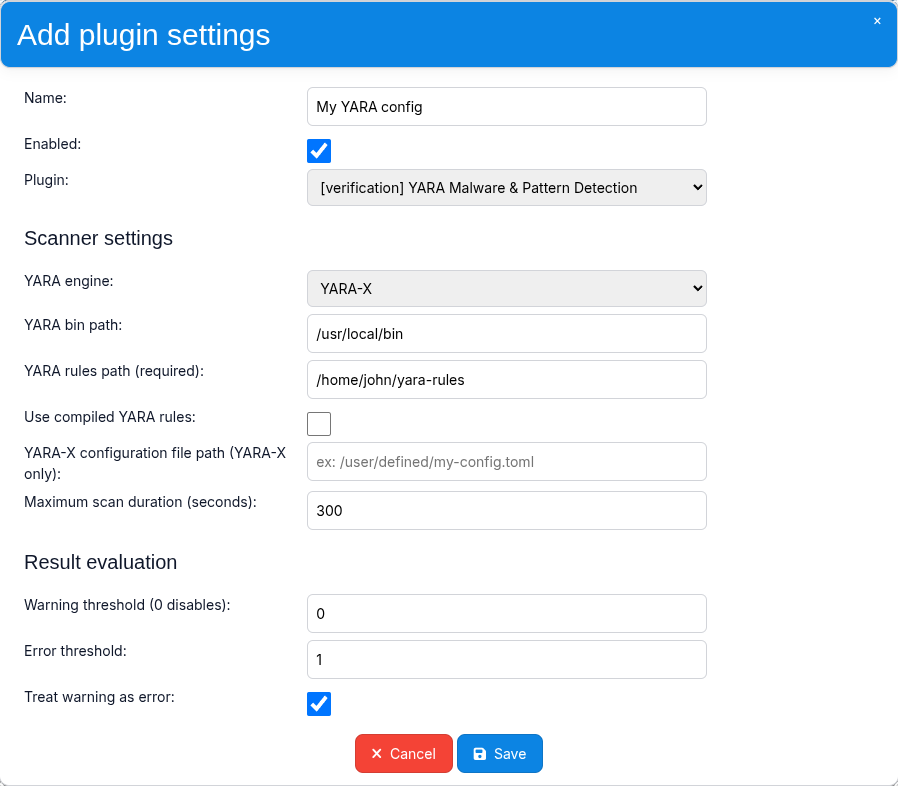
The YARA Malware & Pattern Detection checker provides configuration parameters for selecting the scanning engine, specifying YARA rules, controlling scan execution, and evaluating detected matches.
The following parameters are available:
YARA engine#
Selects the YARA scanning engine used to examine restored backup data.
Available values:
YARA-X - uses the
yrcommand-line scanner.Classic YARA - uses the
yaracommand-line scanner.
Default: YARA-X
Only the selected engine needs to be installed.
YARA bin path#
Specifies the directory containing the executable of the selected scanning engine.
Examples:
/usr/bin- a typical location for Classic YARA installed through a distribution package manager./usr/local/bin- a possible location for a manually installed YARA-X executable.
The parameter must contain the executable directory, not the full executable filename.
Default: /usr/bin
If the parameter is empty, the checker searches for the executable using the system’s
PATH environment variable.
YARA rules path#
Specifies the path to the YARA rules used for scanning restored backup data.
The path can refer to:
A single YARA source rule file.
A directory containing YARA source rule files.
A single compiled rule file, when Use compiled YARA rules is enabled.
Default: Empty (must be configured).
When a directory is specified, the checker loads supported source rule files directly from that directory. Subdirectories are not searched recursively.
Use compiled YARA rules#
Enables loading of precompiled YARA rules instead of regular source rules.
Default: false (disabled).
When enabled, YARA rules path must point to a single compiled rule file compatible with the selected scanning engine.
When disabled, the checker accepts a source rule file or a directory containing source rules.
YARA-X configuration path#
Specifies an optional configuration file for the YARA-X scanning engine.
Default: Empty.
This parameter applies only when YARA-X is selected.
The configuration file uses TOML format and can be used to customize YARA-X behavior, including compiler warnings.
For example, the following configuration disables the
text_as_hex warning:
[warnings]
text_as_hex = { disabled = true }
Specify the absolute path to the configuration file, for example:
/etc/bacularis/yara-x.toml
When the parameter is empty, no explicit configuration file path is passed to YARA-X.
Invalid configuration files cause the scanning process to fail. The checker reports the error in the Restore Verification job log.
Maximum scan duration#
Specifies the maximum time allowed for the scanning process to complete, in seconds.
Default: 300 seconds.
If the process exceeds this limit, the checker terminates the scan and reports a verification failure.
The timeout applies to the external scanning process, not to the entire Bacula Restore Job.
Warning threshold#
Specifies the minimum number of detected matches required to report a warning.
Default: 0 (disabled).
When enabled, the warning threshold must be lower than the error threshold.
A warning does not automatically cause the verification test to fail unless Treat warning as error is enabled.
Error threshold#
Specifies the minimum number of detected matches required to fail the verification.
Default: 1.
The error threshold must be a positive integer.
For example, setting the error threshold to 1 causes the verification to fail
when at least one YARA rule matches a scanned file.
Treat warning as error#
Determines whether results classified as WARNING cause the verification test to fail.
Default: true (enabled).
When enabled, reaching the warning threshold causes the verification test to fail, even if the error threshold has not been reached.
When disabled, the checker reports WARNING but allows the verification test to pass, provided no other failure condition occurs.
Note
Scanner execution failures, invalid rules, timeouts, and other fatal scanning errors cause verification failure independently of the configured match thresholds.
The thresholds apply to successfully detected rule matches, not to the number of scanner diagnostic messages.
Scanner diagnostics and errors#
During scanning, YARA engines may report diagnostic messages related to rule compilation, file access, or scanner execution.
The YARA Malware & Pattern Detection checker processes these diagnostics separately from detected rule matches.
Depending on the type and severity of the problem, diagnostics may be recorded in the Restore Verification job log without affecting the verification result, or may cause the verification to fail.
Non-fatal warnings#
Some scanner warnings do not prevent a scan from completing successfully.
Examples include:
Rule compilation warnings that do not prevent the rules from being loaded.
Recoverable errors when accessing individual files during a directory scan.
Problems with individual filesystem objects, such as broken symbolic links.
When the scanning engine completes successfully, the checker records these diagnostics in the Restore Verification job log and continues evaluating the detected matches.
For example:
Scanner compiler warnings: 271 (rule source omitted)
A non-fatal warning does not increase the match count and does not automatically cause the verification test to fail.
The Treat warning as error parameter applies to warnings generated by the configured match threshold, not to non-fatal scanner diagnostic messages.
Fatal scanning errors#
A fatal scanning error prevents the checker from obtaining a reliable scan result.
Examples include:
The selected YARA executable cannot be found or started.
The configured YARA rules path does not exist or cannot be accessed.
YARA rules contain errors that prevent compilation.
The selected scanning engine cannot load the configured rules.
The scanning process terminates unsuccessfully.
When a fatal scanning error occurs, the checker reports a verification failure.
For example:
FAIL (matches: unavailable)
The unavailable match count indicates that the scan did not complete reliably.
A failed scan is never treated as a successful scan with zero detected matches.
Scan timeout#
The checker limits the execution time of the external scanning process using the Maximum scan duration parameter.
If the scanning process exceeds the configured time limit, Bacularis terminates the process and reports a verification failure.
For example, a timeout diagnostic may include:
Process timed out.
timeout: yes
The timeout applies to the scanning process, including loading or compiling rules and examining the restored data.
Scan output limit#
The checker also limits the combined amount of standard output and standard error produced by the scanning process.
The default output limit is 16 MiB.
If the scanner exceeds this limit, Bacularis terminates the process and reports a verification failure.
For example:
Combined process output limit exceeded.
output limit: yes
This limit protects the verification process from excessive scanner output, which may occur when scanning large datasets with many matching rules or diagnostic messages.
Note
The output limit applies to scanner output, not to the size of the restored files being scanned.
A scan of a large directory may complete successfully if the generated output remains within the limit.
Troubleshooting scanner failures#
If the checker reports a scanning failure:
Verify that the selected YARA engine is installed and that YARA bin path points to the correct executable directory.
Check that YARA rules path exists and contains rules compatible with the selected engine.
Verify that the scanning process has permission to read the rule files and restored data.
Examine the Restore Verification job log for scanner diagnostics and error details.
If the scan exceeds the time limit, review Maximum scan duration and consider the size of the data and rule set.
Scanner errors should be resolved before relying on the verification results for malware or pattern detection.
Examples#
The following examples demonstrate how to use the YARA Malware & Pattern Detection checker with custom YARA rules and configurable match thresholds.
Example 1: Detecting a custom pattern#
This example demonstrates how to detect a specific text pattern in restored backup data.
First, create a directory for the YARA rules:
sudo mkdir -p /etc/bacularis/yara-rules
Create a file named suspicious-marker.yar with the following content:
rule Bacularis_Suspicious_Marker
{
    strings:
        $marker = "suspicious_marker"

    condition:
        $marker
}
The rule matches files containing the text suspicious_marker.
Create a test file on a Bacula client:
echo "This file contains suspicious_marker for testing." > bacularis-yara-test.txt
Make sure that the test file is included in a Bacula backup.
Next, configure the checker in a Restore Verification rule:
YARA engine:           YARA-X
YARA bin path:         /usr/local/bin
YARA rules path:       /etc/bacularis/yara-rules
Use compiled rules:    false
Warning threshold:     0
Error threshold:       1
Treat warning as error: true
Run a Restore Verification test that restores the backup containing the test file.
If the rule matches the restored file, the checker reports:
FAIL (matches: 1)
The Restore Verification job log includes information about the matching rule and file.
If the test file does not contain the pattern, and no other files match the rule, the checker reports:
PASS (matches: 0)
Note
The test pattern used in this example is harmless and is intended only to demonstrate rule matching.
A real malware detection rule set should be selected and maintained according to the security requirements of the environment.
Example 2: Using warning and error thresholds#
This example demonstrates how to classify scanning results based on the number of detected rule matches.
Assume the checker uses the following configuration:
Warning threshold:       2
Error threshold:         5
Treat warning as error:  false
The checker evaluates the results as follows:
Detected matches |
Checker result |
Verification test |
|---|---|---|
0-1 |
PASS |
PASSED |
2-4 |
WARNING |
PASSED |
5 or more |
FAIL |
FAILED |
If Treat warning as error is enabled, results classified as WARNING cause the verification test to fail.
For example, when four matching rule-file combinations are detected:
WARNING (matches: 4)
The verification test passes when Treat warning as error is disabled and fails when it is enabled.
This allows administrators to distinguish between lower-level detections that require attention and detections that should cause immediate verification failure.
Notes and limitations#
The following notes and limitations apply to the YARA Malware & Pattern Detection checker.
Detection limitations
The checker detects only patterns defined by the configured YARA rules. Malware or suspicious content not covered by these rules may remain undetected.
A successful scan with no detected matches does not guarantee that the restored data is free from malware.
YARA rules may produce false positives or false negatives. Detection results should be interpreted in the context of the environment and the rules being used.
The checker is intended for detection and verification purposes. It does not remove, quarantine, or disinfect suspicious files.
YARA rules and compatibility
Bacularis does not provide or maintain YARA detection rules. Administrators are responsible for obtaining, reviewing, and updating their rule sets.
Rule compatibility depends on the selected scanning engine, its version, supported modules, and available external variables.
When loading rules from a directory, the checker reads only
.yarand.yarafiles located directly in that directory. Subdirectories are not searched.Precompiled rules must be compatible with the selected scanning engine. Compiled rule formats are not interchangeable between Classic YARA and YARA-X.
Updating the scanning engine or rule set may change detection results or introduce compatibility problems. Test significant changes before using them in production.
Filesystem scanning
The checker examines data restored to the filesystem. It does not scan backup data directly from Bacula volumes.
When scanning a directory, the selected scanning engine examines its contents recursively.
Symbolic links and special filesystem objects may be handled differently by Classic YARA and YARA-X. Some objects may be skipped or produce file-access diagnostics.
Recoverable file-access errors may be reported without causing the verification test to fail. A successful verification result does not necessarily mean that every file in the selected directory was scanned successfully.
The checker scans file content using the selected YARA engine. It does not extract files from archives or inspect the internal contents of encrypted files unless the configured rules and scanning engine support the required processing.
Performance and resource usage
Scanning duration depends on the amount of restored data, the number and complexity of YARA rules, and the performance of the system.
Large rule sets may increase rule compilation time, memory consumption, and overall scanning duration.
The checker runs the scanning engine as an external process with a configurable execution timeout.
The combined scanner output is limited to 16 MiB. Scans producing excessive output are terminated and reported as failed.
Precompiled rules may reduce repeated compilation overhead but do not eliminate the resource costs of scanning restored data.
Security considerations
Run Restore Verification in an appropriately isolated restore environment, particularly when checking backups that may contain malware.
Scanning suspicious files does not require executing them. The checker does not intentionally execute the content being scanned.
Ensure that the scanning process has only the filesystem permissions required to access the rules and restored data.
Obtain YARA rules and scanning engine binaries from trusted sources, and review their applicable licenses and update policies.
Review scanner diagnostics in the Restore Verification job log, especially when a scan reports file-access problems or other non-fatal warnings.
Important
The YARA Malware & Pattern Detection checker provides an additional detection mechanism within Restore Verification. It is not a replacement for antivirus software, endpoint protection, or other security controls.
A PASS result indicates that the scan completed successfully and that the number of detected matches remained below the configured thresholds. It does not certify that the restored data is malware-free.