
Verification Rules#
Introduction#
Verification Rules are reusable sets of verification conditions used to check restored data in Rule-based Verification. They use checker plugins to evaluate restored data against configured criteria.
A single Restore Test can use one or more Verification Rules.
Configuration#
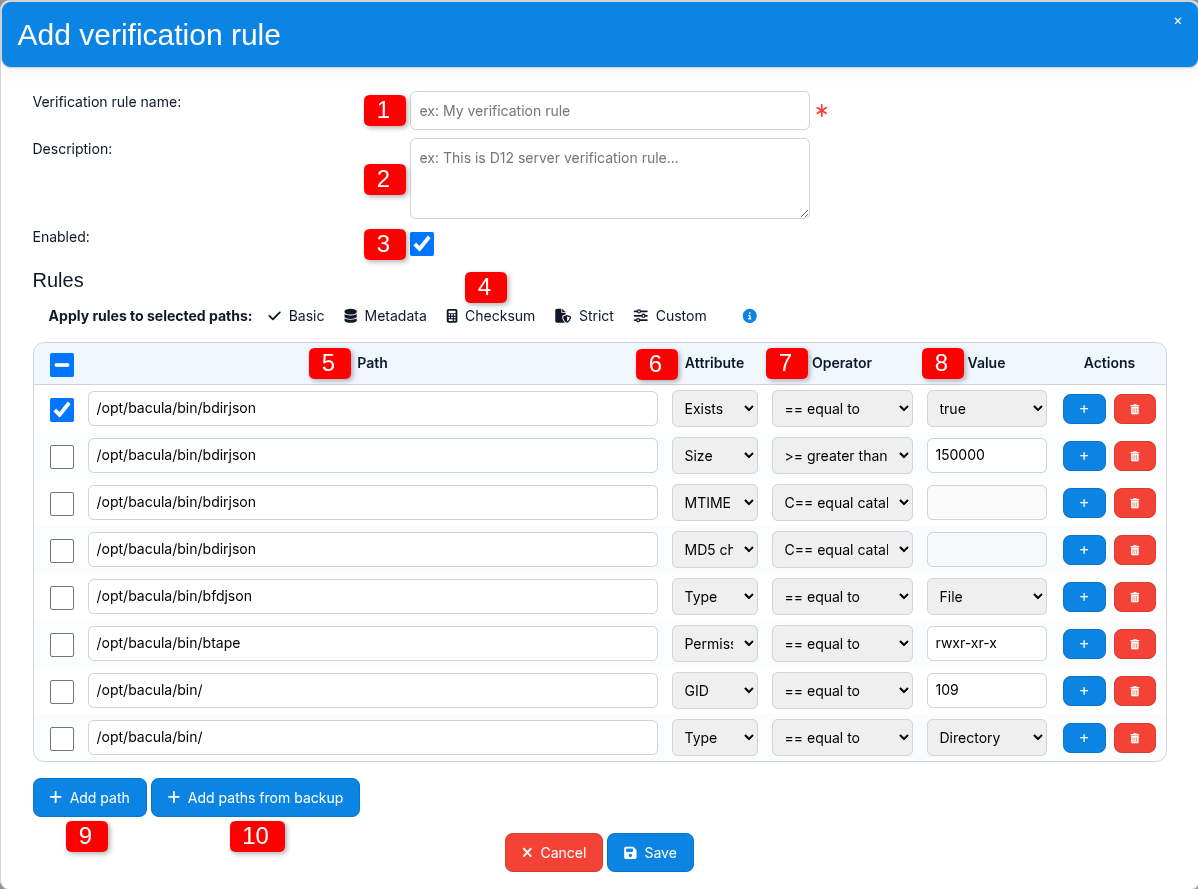
1. Verification rule name#
Defines the name of the Verification Rules configuration. The name is used to identify this rule set in the Bacularis Restore Verification environment.
2. Description#
An optional description of the Verification Rules configuration. It can be used to provide additional information such as its purpose, scope, intended use, or other notes.
3. Enabled#
The Enabled option controls whether the Verification Rules configuration participates in data verification.
A single Restore Test can use multiple Verification Rules. If one of them is disabled, it is skipped during verification of the restored data.
Disabling Verification Rules does not remove them from Restore Tests that reference them. They remain assigned but are skipped during execution.
4. Apply rules to selected paths#
This section provides predefined rule sets that can be applied to selected paths.
The following predefined sets are available:
Basic – check that selected files or directories exist and are not empty.
Metadata – compare restored files with metadata stored in the Bacula Catalog.
Checksum – compare restored file checksums with values stored in the Bacula Catalog.
Strict – compare restored files with Bacula Catalog metadata and checksums.
Custom – choose an attribute, operator, and value.
These predefined sets make it possible to apply several related rules at once. Select the required paths and click the appropriate rule set to apply it to those paths.
Note
If a selected path already contains a rule for an attribute included in the predefined rule set, applying the set replaces the existing rule for that attribute.
5. Path#
The Path column defines the file-system objects that should be checked during the Restore Test.
Paths can refer to files, directories, symbolic links, and other file-system objects. They are always defined using their full absolute location as it existed in the original file system when the backup was created.
Important
Always define paths exactly as they existed in the original file system when the backup was created. Do not include the Restore Destination prefix. Bacularis applies the configured restore prefix internally when locating restored data.
In Verification Rules, a path ending with / is treated as a
directory.
Paths without a trailing slash represent non-directory file-system
objects.
When enabled again, the Verification Rules become active everywhere they are used.
6. Attribute#
The Attribute column defines which property of the restored data should be checked.
Examples include:
Exists – checks whether the file-system object exists,
Permissions – checks the permissions of the file-system object,
UID – checks the identifier of the file owner,
and many others.
Attributes are the user-facing representation of checker plugins used by Restore Verification. Each attribute represents a checker plugin capable of validating one specific property of the restored data.
The available attributes depend on the installed checker plugins.
More information: Checker Plugins
One row represents one verification condition for one path.
For example:
/opt/bacula/bin/bdirjson  Exists       ==  true
/opt/bacula/bin/bdirjson  Size         >=  1000
/opt/bacula/bin/bdirjson  Permissions  ==  rwxr-xr-x
If the same path needs to be checked using multiple attributes, use the same path in several rows with different verification conditions.
The easiest way to add another condition for the same path is
to use the + button in the existing row. This copies
the path into a new row without copying the current verification
condition.
Alternatively, the same path can be added again manually using Add path.
7. Operator#
The Operator defines how the actual value read from the restored data should be compared with the configured expected value.
Different checker plugins support different operators. After an attribute is selected, the list of available operators is automatically limited to those supported by the corresponding checker.
Example:
Size > 0
where:
Sizerepresents the actual value read from the restored file,>is the comparison operator,0is the expected value.
8. Value#
The Value field defines the expected value on the right side of the comparison operator.
Some checker plugins provide predefined values. For example,
the Exists checker supports the == and != operators and
provides true and false as possible expected values.
The expected value must match the type required by the selected checker.
Examples:
Size - value in bytes,
Exists -
trueorfalse,Type - predefined file type,
Checksum - string in the format expected by the selected checksum checker.
9. Add path#
The Add path button adds a new empty rule row.
After adding the row, enter the required path and configure the remaining fields for the verification condition.
10. Add paths from backup#
The Add paths from backup button allows paths to be imported directly from existing backups.
After clicking the button, a new window opens where you can select the Bacula Client and a specific backup from which paths should be imported.
After selecting the backup, Bacularis displays the files contained in it. Use the Select button to choose the required paths.
When the selection is complete, click Use selected paths to import the selected paths into the Verification Rules table.
This is the recommended way to add paths because it avoids typing errors and preserves the exact original backup paths.
Using multiple Verification Rules#
Verification Rules can be used individually, with one rule set assigned to a Restore Test, or multiple Verification Rules can be assigned to the same Restore Test.
Verification Rules can be treated as reusable test suites.
For example, separate rule sets can be created for:
system configuration files,
user data,
application files,
directory structure,
database dump validation.
Using multiple Verification Rules is especially useful when different backups contain similar data structures or when a larger rule set can be divided into smaller logical groups.
This improves reusability and helps keep the Restore Verification configuration organized.
One Verification Rule, multiple Restore Tests#
A Verification Rules configuration can be assigned to multiple Restore Tests.
This is useful when different Backup Jobs contain the same or similar data structures and should be checked using the same verification criteria.
How rules are evaluated#
During Rule-based Verification, Bacularis processes each enabled rule, locates the restored path, runs the checker associated with the selected attribute, compares the actual value with the expected value using the configured operator, and records the result as passed or failed.