
Role mapping#
What is role mapping#
Many Identity and Access Management (IAM) systems provide functionality to group users into collections (e.g., groups, departments, branches) and/or assign them specific attributes (e.g., roles, functions, statuses). Bacularis also provides its own roles, which are differ from those defined by the identity provider.
The ability to associate roles from the IAM system with roles in Bacularis is called role mapping.
Purpose of role mapping#
Role mapping allows administrators to manage Bacularis users and roles centrally from the IAM system. Administrators can assign roles, remove users from roles, or extend their permissions directly within the IAM.
Through role mapping, Bacularis automatically translates IAM roles into corresponding Bacularis roles.
Characteristics#
Role mapping supports the following relationships:
One-to-One – one IAM role corresponds to one Bacularis role
One-to-Many – one IAM role corresponds to multiple Bacularis roles
Role mapping is available in Bacularis starting from version 6.0.0.
Two role sources#
It is important to understand that mapped roles and roles assigned locally to user accounts are two separate role sets.
For users authenticated via an IdP with role mapping enabled, only mapped roles originating from the IdP are used. In this case, locally assigned roles on user accounts are ignored, and modifying them has no effect.
For users who do not authenticate via an IdP, or authenticate via an IdP with role mapping disabled, local roles function normally.


How to enable role mapping#
Role mapping configuration consists of three steps:
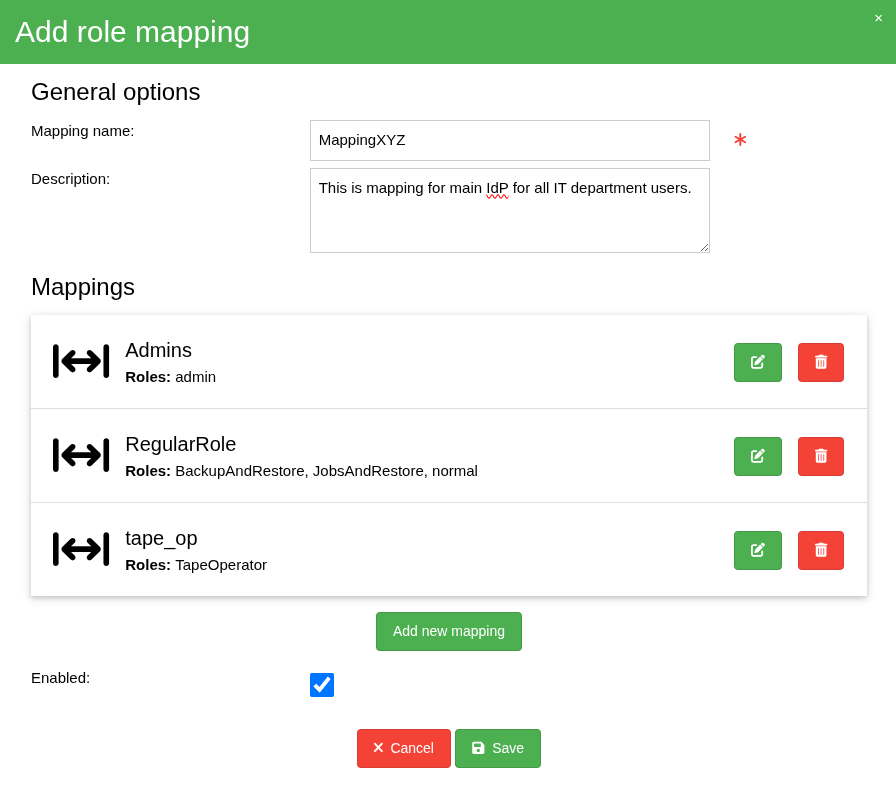
1. Create a role mapping#
[Page: Security] → [Tab: Roles] → [SubTab: Role mapping] → [Button: Add new role mapping]
In the role mapping creation window, define mappings as pairs:
IAM role => Bacularis roles
2. Enable role mapping for the identity provider#
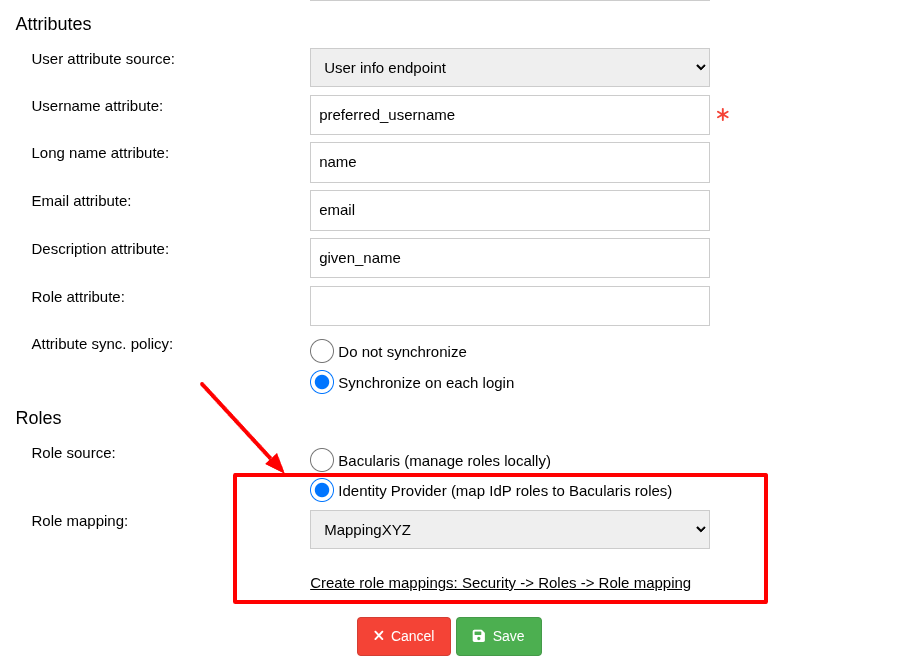
[Page: Security] → [Tab: Authentication] → [SubTab: Identity providers] → [Table: Identity providers] → [Button: Edit]
Enable role mapping in your identity provider configuration in Bacularis and assign the previously created role mapping to it.
3. Define the role attribute#
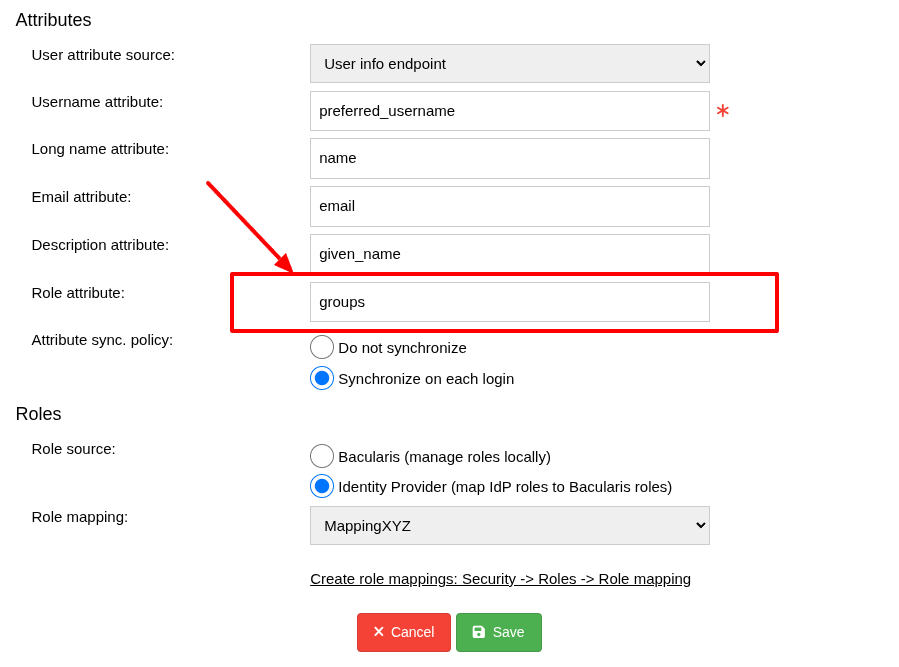
[Page: Security] → [Tab: Authentication] → [SubTab: Identity providers] → [Table: Identity providers] → [Button: Edit]
Specify the role attribute in the IdP configuration (e.g., the groups attribute)
that will be available in the ID token or via the UserInfo endpoint. This attribute
must provide the roles that will be mapped.
Changing user roles on the IAM side#
Mapped roles in Bacularis are session-based. Therefore, after changing a user’s roles in the IAM system, the user must log out of Bacularis.
Upon the next login, the updated roles will be applied.
If role mapping is not used, changes to locally assigned roles take effect immediately and do not require the user to log out.
Attribute synchronization policy#
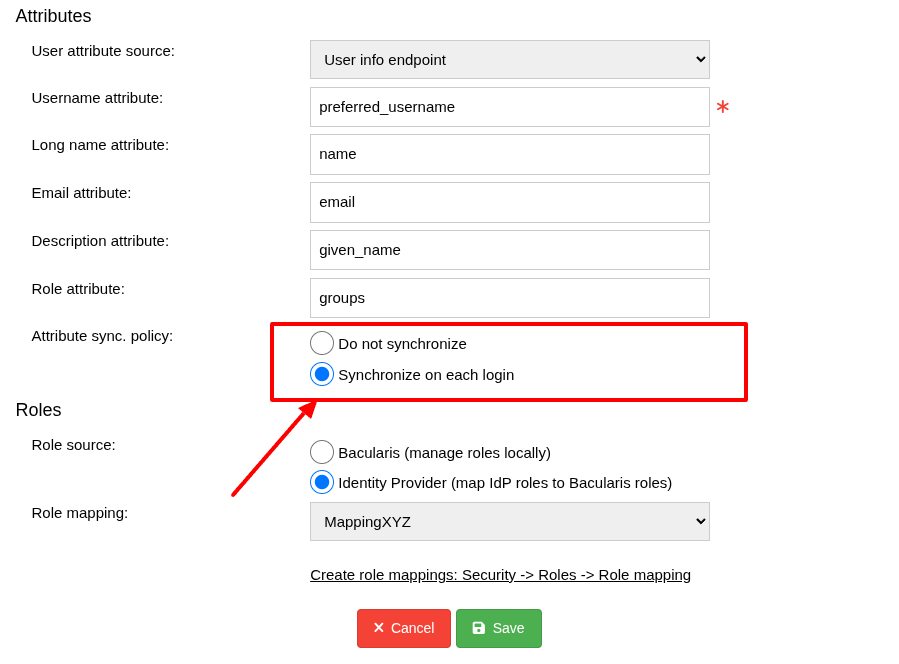
[Page: Security] → [Tab: Authentication] → [SubTab: Identity providers] → [Table: Identity providers] → [Button: Edit]
When attribute synchronization is enabled and the role attribute is defined, roles provided by the identity provider are synchronized with the local Bacularis roles assigned to user accounts.
This does not mean that local roles are used when role mapping is enabled. It only ensures consistency between mapped roles and locally stored roles.
Thanks to attribute synchronization:
If role mapping is later disabled, or
If the identity provider is changed to one without role mapping configured,
users will already have up-to-date local roles assigned to their Bacularis accounts and will be able to use them immediately.
Role mapping and other features#
Roles assigned to user accounts#
[Page: Security] → [Tab: Roles] → [SubTab: Roles]
If role mapping is enabled for a given IdP, only mapped roles from the identity provider are used for users authenticating through that IdP. Locally defined roles on Bacularis user accounts are ignored for those users.
For all other users (not authenticating via an IdP using role mapping), local roles function as usual.
Default access setting#
[Page: Security] → [Tab: Authentication] → [SubTab: General] → [Option: Access with default settings]
If default access is enabled for successfully authenticated users who do not yet have a Bacularis account, the default roles defined for such access no longer apply when role mapping is enabled.
Instead, only mapped IAM roles are considered during login.
User provisioning#
[Page: Security] → [Tab: Authentication] → [SubTab: General] → [Option: Provision user]
When user provisioning is enabled, locally defined default roles for newly created accounts are not applied if role mapping is used. Newly created accounts receive only the roles mapped from the identity provider.
For users who do not authenticate via an IdP using role mapping, local roles behave as before.